Karnataka HRMS Update-2026: Geo Coordinates Mandatory for KAMS Attendance
Karnataka HRMS Update-2026: Karnataka HRMS 2.0 KAMS App attendance guide 2026. Learn how to record attendance at 10 AM, update office address, capture Geo Coordinates and check FAQs.
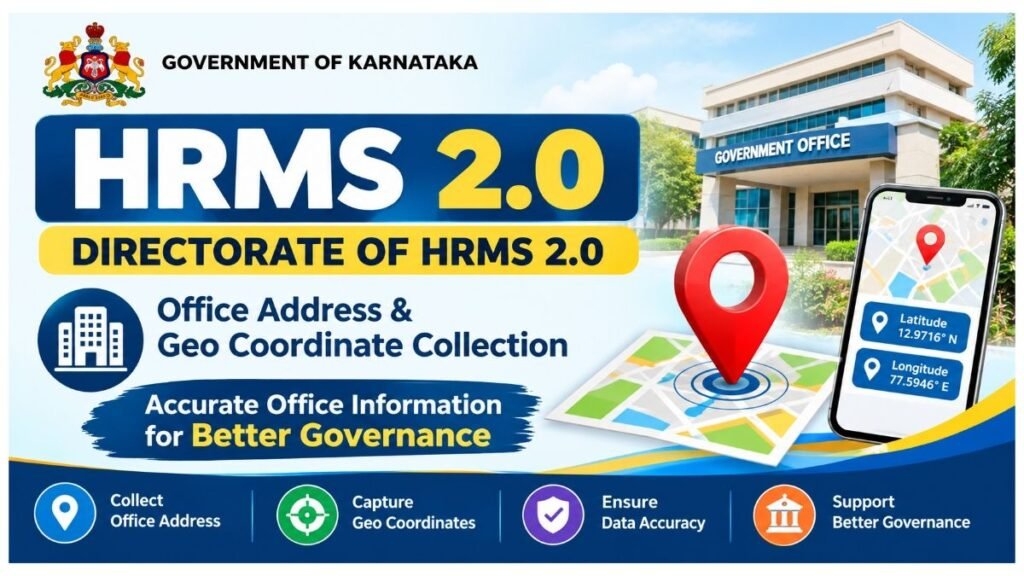
The Government of Karnataka has issued important instructions regarding attendance recording through the KAMS (Karnataka Attendance Management System) App and the collection and verification of Office Address and Geo Coordinates in the HRMS 2.0 system.
As per the government directions issued on 05 June 2026, all officers and employees are required to record their attendance through the KAMS App at 10:00 AM.
To support the implementation of location-based attendance and other GIS-based services, accurate office address and geographical coordinates must also be updated and verified in HRMS 2.0.
What is the HRMS 2.0 Office Geo Coordinate Collection?
The Office Address and Geo Coordinate Collection process is being implemented to maintain accurate digital information about government office locations.
The collected information will support:
- Identification of Government Office Locations
- KAMS Attendance Management System implementation
- GIS-based Location Verification
- Accurate office information
- Improved government service delivery
- Location-based government services
Important Instructions for DDOs
All Department Heads (HODs) are required to ensure that the concerned Drawing and Disbursing Officers (DDOs) take necessary action.
The DDO/Approver should:
- Login to the HRMS 2.0 Web Portal.
- Select the concerned office.
- Verify and update the office address.
- Nominate an eligible employee/officer for Geo Coordinate collection.
- Save and confirm the details.
- Ensure that the required status displays a Green Tick after successful completion.
HRMS 2.0 Portal
The HRMS 2.0 Web Portal can be accessed at:
https://hrms2.karnataka.gov.in
Who Should Be Nominated for Geo Coordinate Collection?
The DDO may nominate himself/herself or a Group ‘B’ or higher-level officer from the concerned office for capturing the office’s geographical coordinates.
The nominated employee must physically be present at the office location while capturing the coordinates.
How to Capture Office Geo Coordinates?
Geo Coordinates can be captured only through the HRMS2-ESS Mobile Application.
Step-by-Step Process for the Nominated Employee
Step 1: Login to the HRMS2-ESS Mobile Application.
Step 2: Go to My Profile.
Step 3: Select Capture My Office Location.
Step 4: Physically stand at the office location and click Submit.
Step 5: The application will capture the office’s Latitude and Longitude (LAT-LONG).
Once the coordinates are successfully captured, the corresponding Geo Coordinates status will show a Green Tick in HRMS 2.0.
How to Update Office Address in HRMS 2.0?
The Approver should follow these steps:
- Login to HRMS 2.0.
- Select the concerned Office.
- Click Edit.
- Check the office address details.
- Update the address if necessary.
- Nominate an employee for Geo Coordinate collection.
- Save the details.
- Verify the status and Green Tick.
Important Points to Remember
- The DDO should nominate one employee from each office for Geo Coordinate collection.
- Geo Coordinates can be captured only through the HRMS2-ESS Mobile Application.
- The nominated employee must be physically present at the office.
- GPS/Location Services must be enabled on the mobile device.
- Internet connectivity is required.
- The nominated employee can be changed only until the Geo Coordinates are captured.
- After successful Geo Coordinate capture, a Green Tick will be displayed.
KAMS App Attendance
All officers and employees are required to record their attendance through the KAMS (Karnataka Attendance Management System) App.
Attendance Time
10:00 AM
Departments and concerned officers should ensure that all employees record their attendance through the KAMS App as directed.
What If Geo Coordinates Are Not Getting Captured?
If the Geo Coordinates cannot be captured through HRMS2-ESS, check the following:
- Ensure that the office address in the HRMS 2 Organogram is correct.
- Turn on GPS/Location Services.
- Ensure that internet connectivity is available.
- Make sure the nominated employee is physically present at the office.
- Verify that the employee has been nominated in HRMS 2.0.
- Check whether the office and employee mapping are correct.
What If the Office Is Not Displayed?
If the office does not appear in the office list, contact the concerned Department HRMS Nodal Officer.
The office may need to be mapped under the appropriate DDO Code in the Organogram.
What If the Employee Is Not Available in the Search List?
If the employee’s name does not appear while nominating an employee:
- Check whether the employee is mapped to the correct office.
- Verify the mapping through the Service Register Module.
- Contact the Department HRMS Nodal Officer if necessary.
Frequently Asked Questions (FAQ)
1. What is KAMS?
KAMS stands for Karnataka Attendance Management System. It is used for recording attendance of government officers and employees.
2. At what time should attendance be recorded through the KAMS App?
As per the instructions provided, attendance should be recorded at 10:00 AM.
3. Who can update the Office Address in HRMS 2.0?
Only the Approver can edit or update the office address details in HRMS 2.0.
4. Why are Office Address and Geo Coordinates being collected?
The information is being collected to maintain accurate government office location details and support location-based services, including attendance management through KAMS.
5. Who should be nominated to capture Geo Coordinates?
The DDO can nominate himself/herself or a Group ‘B’ or higher-level officer from the concerned office.
6. Can Geo Coordinates be captured through the HRMS 2.0 Web Portal?
No. Geo Coordinates can only be captured through the HRMS2-ESS Mobile Application by the nominated officer/employee.
7. Does the nominated employee need to be physically present at the office?
Yes. The nominated employee must be physically present at the actual office location while capturing the Geo Coordinates.
8. How are Geo Coordinates captured?
The nominated employee must login to the HRMS2-ESS Mobile Application, go to My Profile, select Capture My Office Location, and submit the location while physically present at the office.
9. What do LAT and LONG mean?
LAT refers to Latitude, while LONG refers to Longitude. Together, they identify the geographical location of the office.
10. When will the Geo Coordinates Green Tick appear?
The Green Tick appears after the nominated employee successfully captures and submits the office’s Geo Coordinates through the HRMS2-ESS Mobile Application.
11. Why is the Office Address Green Tick not showing?
The Office Address Green Tick appears after the office address details have been successfully saved in HRMS 2.0.
12. Can the nominated employee be changed?
Yes. The Approver can change the nominated employee until the Geo Coordinates have been successfully captured.
13. Can the nominated employee be changed after Geo Coordinates are captured?
As per the provided guidelines, the nominated employee can be changed only before the Geo Coordinates are captured.
14. What should I do if Geo Coordinates are not being captured?
Check the office address, GPS/Location Services, internet connection, employee nomination and office mapping. If the problem continues, contact the concerned HRMS Nodal Officer.
15. What should I do if my office is not displayed?
Contact the Department HRMS Nodal Officer and request that the office be mapped under the appropriate DDO Code in the Organogram.
16. What if the nominated employee’s name is not appearing?
Ensure that the employee is correctly mapped to the concerned office through the Service Register Module. Contact the HRMS Nodal Officer if required.
17. Is internet connectivity required to capture Geo Coordinates?
Yes. A working internet connection is required while using the HRMS2-ESS Mobile Application for the Geo Coordinate capture process.
18. Is GPS required?
Yes. GPS/Location Services should be enabled on the mobile device while capturing the office location.
19. Which mobile devices support Geo Coordinate capture?
As per the provided guidelines, Geo Coordinate capture is supported through the HRMS2-ESS application on Android-supported mobile devices.
20. Whom should I contact for technical issues with the KAMS App?
For technical problems related to attendance recording through the KAMS App, contact the CEG Helpdesk.
Helpdesk: 8277078123
Email: KAMS.helpdesk@karnataka.gov.in
For office mapping, employee mapping and access-related issues, contact the concerned Department HRMS Nodal Officer.
Key Takeaways
The HRMS 2.0 Office Address and Geo Coordinate Collection process is an important step towards accurate digital mapping of government offices and implementation of location-based attendance through KAMS.
All concerned DDOs and employees should ensure that:
- Office address details are correct.
- An eligible employee is nominated.
- Geo Coordinates are captured through HRMS2-ESS.
- The nominated employee is physically present at the office.
- Green Tick status is verified.
- All employees record attendance through KAMS at the prescribed time.
- Technical or mapping issues are reported to the appropriate HRMS support authority.
HRMS 2.0 Portal: https://hrms2.karnataka.gov.in