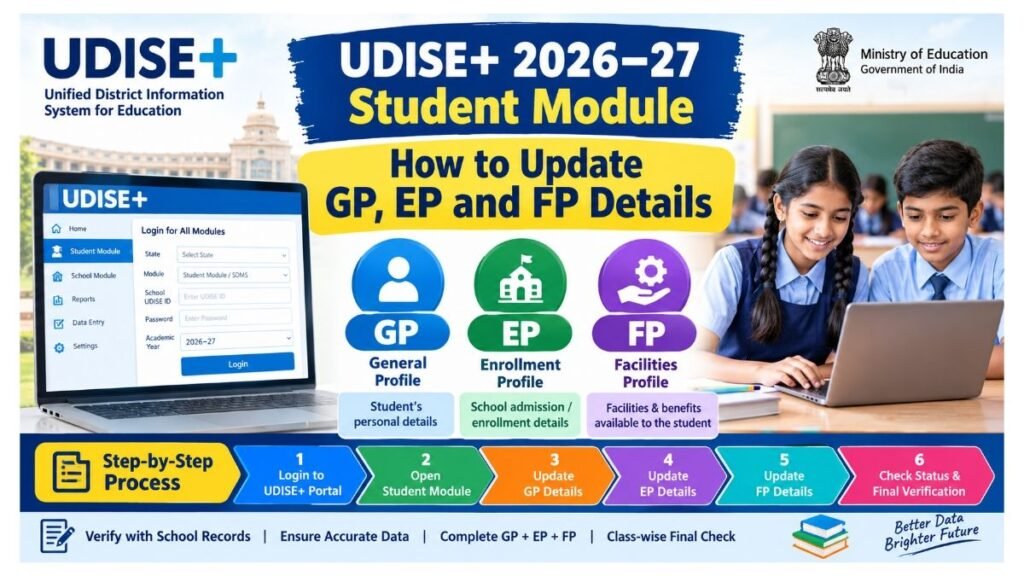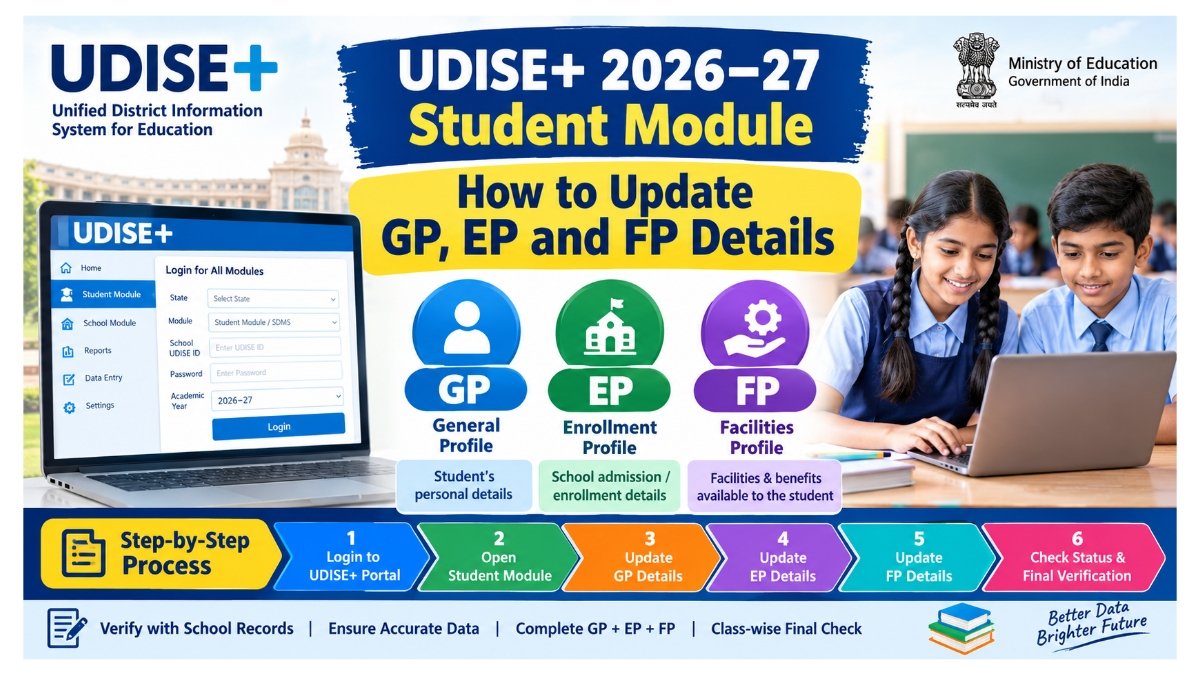
UDISE+ 2026–27 Student Module: How to Update GP, EP and FP Details
UDISE+ 2026–27 Student Module: Check the step-by-step process to update GP, EP and FP details, verify student information and complete the final status verification.
Schools are required to complete the process of checking and, where necessary, updating students’ GP, EP and FP details in the UDISE+ 2026–27 Student Module. During this process, it is important to verify student information with school records and relevant official documents before entering or updating the details.
Teachers can log in to the UDISE+ Student Module and check each student’s General Profile (GP), Enrollment Profile (EP), and Facilities Profile (FP) details.
UDISE+ 2026–27 Student Module – GP, EP and FP
Module Full Form Main Information GP General Profile Student’s personal details EP Enrollment Profile School admission/enrollment details FP Facilities Profile Details of facilities available to the student
🟢 Step 1: Login to the UDISE+ Portal
First, log in to the UDISE+ Portal.
- Open the UDISE+ Portal.
- Select Login for All Modules.
- Select your State.
- Select Student Module / SDMS.
- Log in using the School UDISE ID and Password.
- Select the Academic Year 2026–27.
🟢 Step 2: Open the Student Module
After logging in:
- Open the Student Module.
- Select Student List / Student Details.
- Select the required Class & Section.
- Select the student’s name.
- First, check the student’s GP, EP and FP status.
🟢 Step 3: GP Update – General Profile
GP stands for General Profile.
In this section, the student’s personal information should be verified. If necessary, the details can be updated based on valid records and documents.
Important details to verify:
- Student Name
- Date of Birth
- Gender
- Aadhaar-related details
- Social Category
- Mother Tongue
- Disability/CWSN-related details
- Address
- Other profile details available on the portal
Important while updating GP
The student’s information should be compared with the school records and relevant official documents before making any update.
After verifying all details:
Save/Update → Check Status
🟢 Step 4: EP Update – Enrollment Profile
EP stands for Enrollment Profile.
This section contains information related to the student’s school enrollment and current class.
Important details to verify:
- Class
- Section
- Admission/Enrollment Details
- Admission Number
- Current Class Details
- Promotion/Progression-related information
- Other enrollment fields available on the portal
The student’s details should be compared with the School Admission Register and other school records before entering or updating the information.
Then:
Save/Update → Check EP Status
🟢 Step 5: FP Update – Facilities Profile
FP stands for Facilities Profile.
In this section, verify the facilities-related information applicable to the student and update it according to the options available on the portal.
For example:
- 🍚 Meal / Nutrition-related Facility
- 📚 Textbook
- 👕 Uniform
- 🎒 Other Student Facilities
- 🎓 Scholarship/Benefit-related Fields
- ♿ CWSN-related Facility, where applicable
Note: Information should be entered only according to the fields and options currently available in the UDISE+ Portal.
Select the appropriate option and complete:
Save/Update → Check FP Status
🔎 Step 6: Final Verification
After updating each student’s details, check the status of all three sections.
Module Status
GP – General Profile ✅ Completed
EP – Enrollment Profile ✅ Completed
FP – Facilities Profile ✅ Completed
After this, check the Class-wise Student List and ensure that no student’s information is pending or incorrect.
⚠️ Important Instructions for Teachers
Information should not be entered based on assumptions.
The following records may be used to verify student information:
- 📖 School Admission Register
- 📖 Student Records
- 📖 Attendance/Academic Records
- 📖 Relevant Official Documents
Special care should be taken while verifying the following information:
- Student Name
- Date of Birth
- Gender
- Aadhaar-related details
- Social Category
- CWSN/Disability Details
Teachers should carefully check the Student List while working to ensure that the details of one student are not accidentally updated for another student.
After clicking Save/Update, it is important to check the status and confirm that the update has been completed successfully.
📌 Final Verification
After completing the GP + EP + FP details of all students in the UDISE+ 2026–27 Student Module, it is advisable to conduct another verification through the Class-wise Student List.
GP = General Profile
EP = Enrollment Profile
FP = Facilities Profile
By verifying student information with the appropriate school records and official documents before updating it, schools can help maintain accurate student data in the UDISE+ Student Module.
UDISE+ 2026–27 – Quick Checklist
☑ UDISE+ Login
☑ Select Academic Year 2026–27
☑ Check Student List
☑ Update GP
☑ Update EP
☑ Update FP
☑ Save/Update
☑ Check Status
☑ Complete Class-wise Final Verification
15 FAQs
1. What is the UDISE+ Student Module?
The UDISE+ Student Module is used to manage and update student-related information for schools.
2. What does GP mean in UDISE+?
GP stands for General Profile, which contains the student’s personal and profile-related information.
3. What does EP mean in UDISE+?
EP stands for Enrollment Profile, which contains student admission and enrollment-related details.
4. What does FP mean in UDISE+?
FP stands for Facilities Profile, which contains information about facilities and benefits applicable to the student.
5. How can teachers log in to the UDISE+ Student Module?
Teachers or authorized school users can log in through the UDISE+ portal using the appropriate school login credentials and access the Student Module.
6. Which academic year should be selected for the current update?
For this process, select Academic Year 2026–27.
7. What details should be checked under GP?
Student name, date of birth, gender, Aadhaar-related details, social category, mother tongue, CWSN/disability details, address and other available profile fields should be verified.
8. What details are checked under EP?
Class, section, admission number, enrollment details, current class information and promotion/progression-related details may need to be verified.
9. What information is available under FP?
FP may include student facilities such as meals/nutrition, textbooks, uniforms, scholarships/benefits and CWSN-related facilities, depending on the fields available on the portal.
10. Which documents should be used to verify student information?
Schools can verify information using the Admission Register, student records, attendance/academic records and relevant official documents.
11. Can student details be updated without verification?
Student information should not be entered based on assumptions. Details should be verified against appropriate school or official records before updating.
12. What should be done after updating GP, EP and FP?
Click Save/Update and check the respective status to confirm that the information has been successfully updated.
13. How can schools check whether all students have been updated?
Schools can review the Class-wise Student List and check whether any student information remains pending or requires correction.
14. What precautions should teachers take while updating student data?
Teachers should carefully verify the student’s name and records and ensure that information belonging to one student is not accidentally entered for another student.
15. What is the final step after completing GP, EP and FP?
The final step is to conduct a class-wise verification and confirm that GP, EP and FP details for all students have been completed correctly.